How to show the time left to everyone in an online meeting: Zoom, Google Meet and Teams
Published ・ Updated
Online events run over even more easily than in-person ones. Speakers can't see a clock in the room, and the host has no easy way to signal. This guide compares three ways to show the time left to everyone in Zoom, Google Meet, Microsoft Teams and similar meeting apps.
Three approaches compared
| Approach | Good | Watch out for |
|---|---|---|
| Share the timer on screen | Big and visible to everyone | It takes the screen share, so the speaker can’t share slides |
| Cue in the chat or out loud | No setup | Speakers mid-sentence rarely notice. A lot of work for the host |
| Show the timer as a “camera” | Works alongside shared slides. Sits in the grid like another participant | Needs an app that supports it |
For pitches with slides, the best option is to leave the screen share for the slides and show the timer somewhere else.
For rounds without slides, such as self-introductions, where the screen share is free, sharing our browser-based giant countdown timer is the quickest option. The digits fill the window, so people watching in a small window can still read them.
Tips for running the session
- Tell people where to look before you start. One sentence is enough: “Keep an eye on the Timer tile.”
- Use colour, not just sound. Audio gets lost online. A tile that changes colour works even when people are muted
- Decide whether cue sounds go into the meeting. Meeting apps often filter out anything that isn’t speech, so don’t rely on sound alone
- If you’re recording, tell everyone before you start. Online, you’re recording other people’s voices too
A timer that joins as a participant: negotimer for Windows
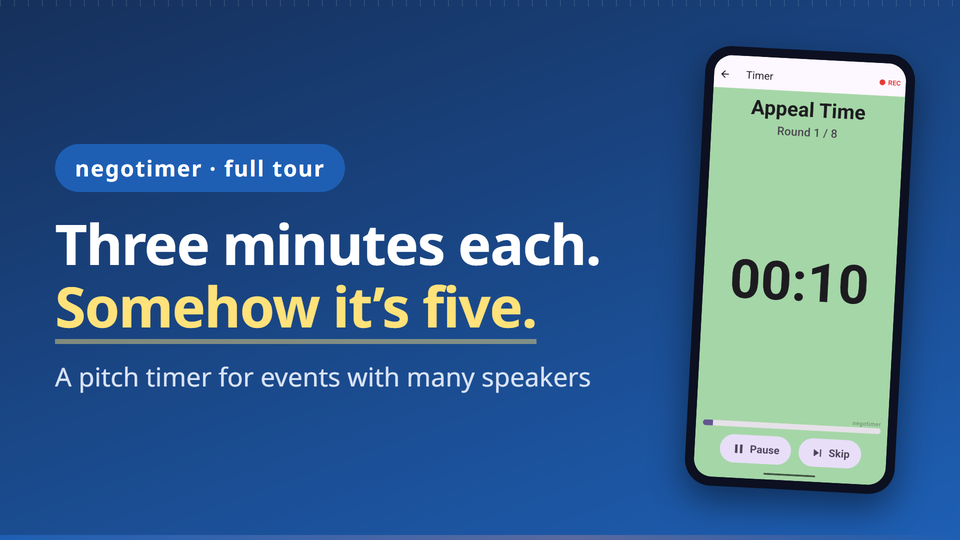
The Windows version of negotimer shows the timer in the meeting as a participant tile.
 ▶ Watch the video tour
- It registers with Windows as a camera, so you can pick it in Zoom, Google Meet or Microsoft Teams like any other camera
- No screen sharing needed, so it works alongside your slides. The timer is never hidden behind a slide
- Green at ten seconds left, yellow at three, and red with “Time is up” at zero. The colour tells everyone the time left, even without sound
- Start, pause, skip to the next phase or add and remove 30 seconds from your own screen
- Run sheets (pitch time, Q&A mode, changeover) work the same way as on the phone version
- Recording (Pro, a one-time purchase) saves your voice and the other side of the meeting together in one file
Requires Windows 11 or later. Free to install. The installer isn't code-signed, so Windows shows a “Windows protected your PC” screen during installation. The Windows page walks you through it. Run sheets and recordings aren't shared with the phone version (iPhone and Android).
Summary
- For pitches with slides, leave the screen share for the slides and show the timer separately
- Online, colour gets through better than sound
- If you record, tell everyone first, because you’re recording their voices too
Related guides
Put the timer in the meeting.
The Windows version of negotimer joins Zoom, Google Meet or Microsoft Teams as a participant tile (Windows 11 or later, free to install). The phone version runs on iPhone and Android.


See the Windows version ・ See the negotimer page ・ More guides