Table assignments for parties and training days: mixing teams and companies
Published
Leave the seating open at a party or training day and people sit with the colleagues they already know. Assign every seat yourself and it takes hours, then falls apart when people don't show up. This guide shows how to mix teams and companies across the tables without spending your whole afternoon on it.
Open seating or assigned tables?
| Approach | Works for | Watch out for |
|---|---|---|
| Open seating | Small events, groups who already know each other | Teams and companies cluster. First-timers don’t know where to sit |
| Random draw | Casual get-togethers | Colleagues can still end up at the same table. No way to place managers or guests |
| Assigned tables | Cross-team parties, training breakouts, mixers | Takes time to prepare. No-shows leave tables uneven |
If the point is “talk to people you don’t usually talk to”, the most reliable approach is to assign the tables, and mix people up systematically.
Four tips for well-mixed tables
1. Decide what to spread out, first
Decide what you don’t want concentrated at one table.
- Team, company or office
- Seniority (so the managers don’t all end up together)
- Age group or year joined
- Gender
Two or three is plenty. Try to balance everything perfectly and nothing ends up balanced.
2. Handle “never at the same table” separately
Some pairs should never share a table, whether that’s two people from rival accounts or two people who simply don’t get along. Treat these as absolute rules, separate from the balancing.
3. Place people with fixed seats first
The emcee, the person giving the toast, guests of honor, the people staffing the registration desk: place anyone whose table or seat is already decided before you assign everyone else. Decide now whether there’s a head table or a VIP table near the stage.
4. Account for different table sizes up front
Some venues mix tables of six and tables of eight. Treat them all the same and you’ll be fixing it later.
Planning for no-shows
At any party, someone doesn’t turn up on the day.
- One or two missing: leave the empty seats and let people spread out a little
- Several missing from one table: re-seat just that table, or merge the rest into a nearby one
- Seating chart already posted: cross out the missing names rather than redoing everything
Track attendance on your guest list so you can re-seat just the people who actually came. Last-minute cancellations become much less stressful.
Assigning tables with an app
The seating chart app SeatCraft seats parties and training days as well as classrooms.
- Round tables: choose the circle layout and count the whole table as neighbors. Enter the number of tables and seats per table, and the seats are laid out
- Different table sizes: tap unused seats to mark them empty, and a room with both 6 and 8-seat tables is easy to recreate
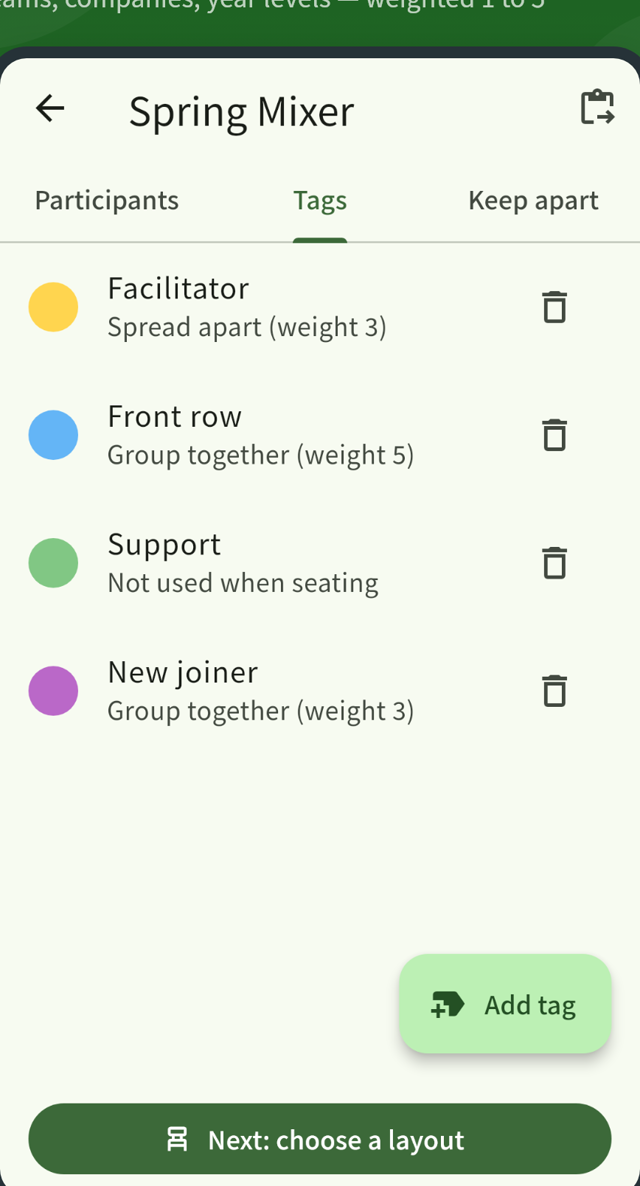
- Spreading people out: tag people by team, company or seniority and set the tag to “spread apart”. The app distributes them as evenly as it can across tables, with a strength from 1 to 5
- Never at the same table: add them as a pair kept apart and they always end up at different tables
- Fixed seats: pin a person to a seat. Generate again and that seat stays put
- Table names: letters (Table A, B…), numbers or your own names, printed as headings on the seating chart PDF
- No-shows: mark someone as away with one tap and re-seat just the people who came
Paste your guest list from Excel or Google Sheets to add everyone at once, tags included.
Everything stays on your device and is never sent anywhere. Every feature is free for up to 20 people. Larger events need the full version, a one-time purchase with no subscription.
Summary
- If the goal is “meet someone new”, assign the tables
- Spread out two or three things at most, and handle “never together” pairs separately
- Place fixed seats and account for table sizes first
- Make it easy to re-seat just the people who came
Related guides
From table assignments to name cards, in one app.
SeatCraft seats parties, workshops and training days as well as classrooms (iPhone, iPad and Android). Every feature is free for up to 20 people. Larger groups need the full version, a one-time purchase with no subscription.